Hover over a block and use ↑ or ↓ to move it up or down one place.
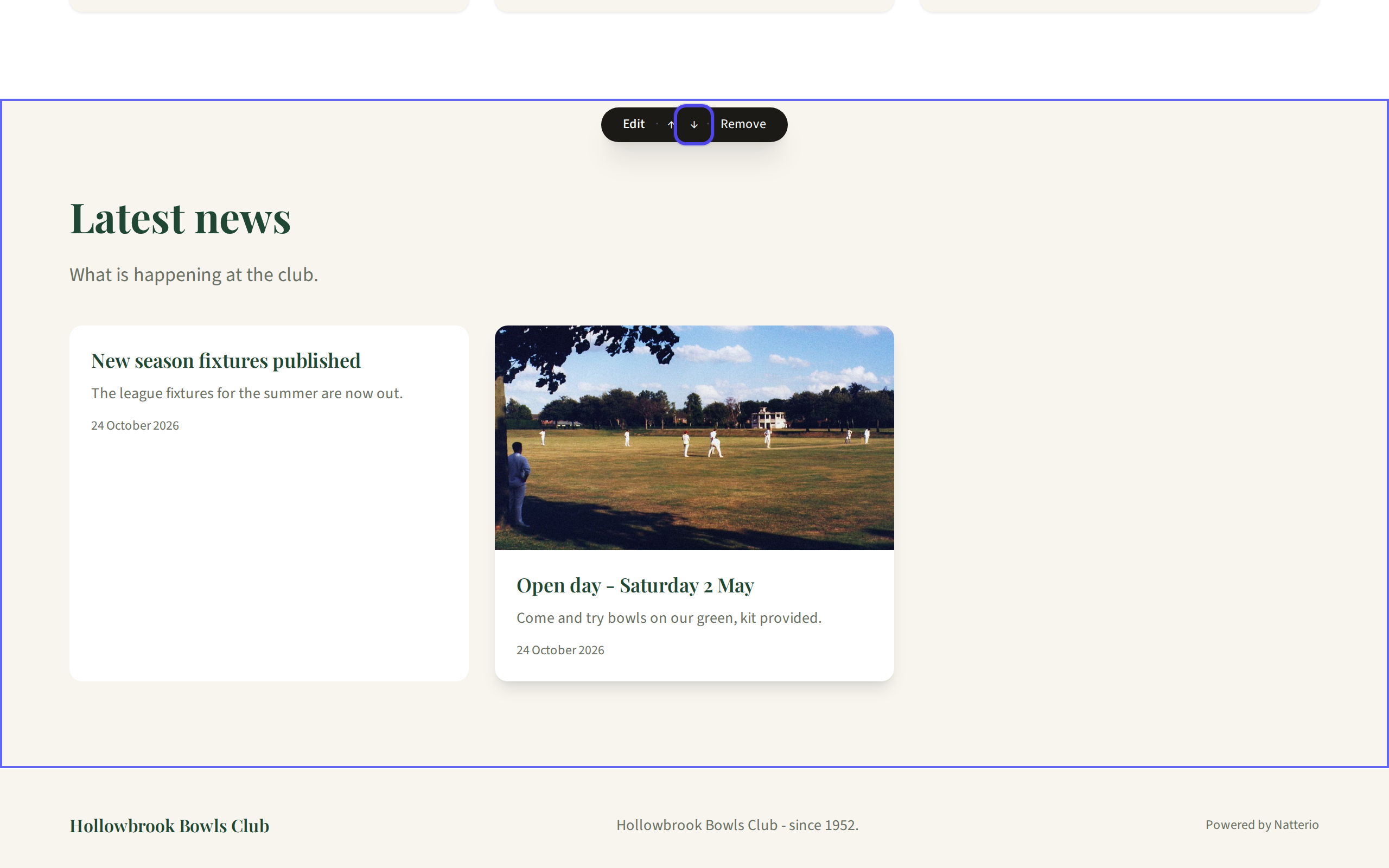
The block toolbar with the down arrow highlighted Keep the Page footer block at the bottom. New blocks arrive below it, so move them up with ↑.
To add a block, click + Add section at the bottom of the page and pick a type: a block of text, a set of highlights, a heading with a button, a contact form, a donate button, a list of your latest news, or a results or league table.
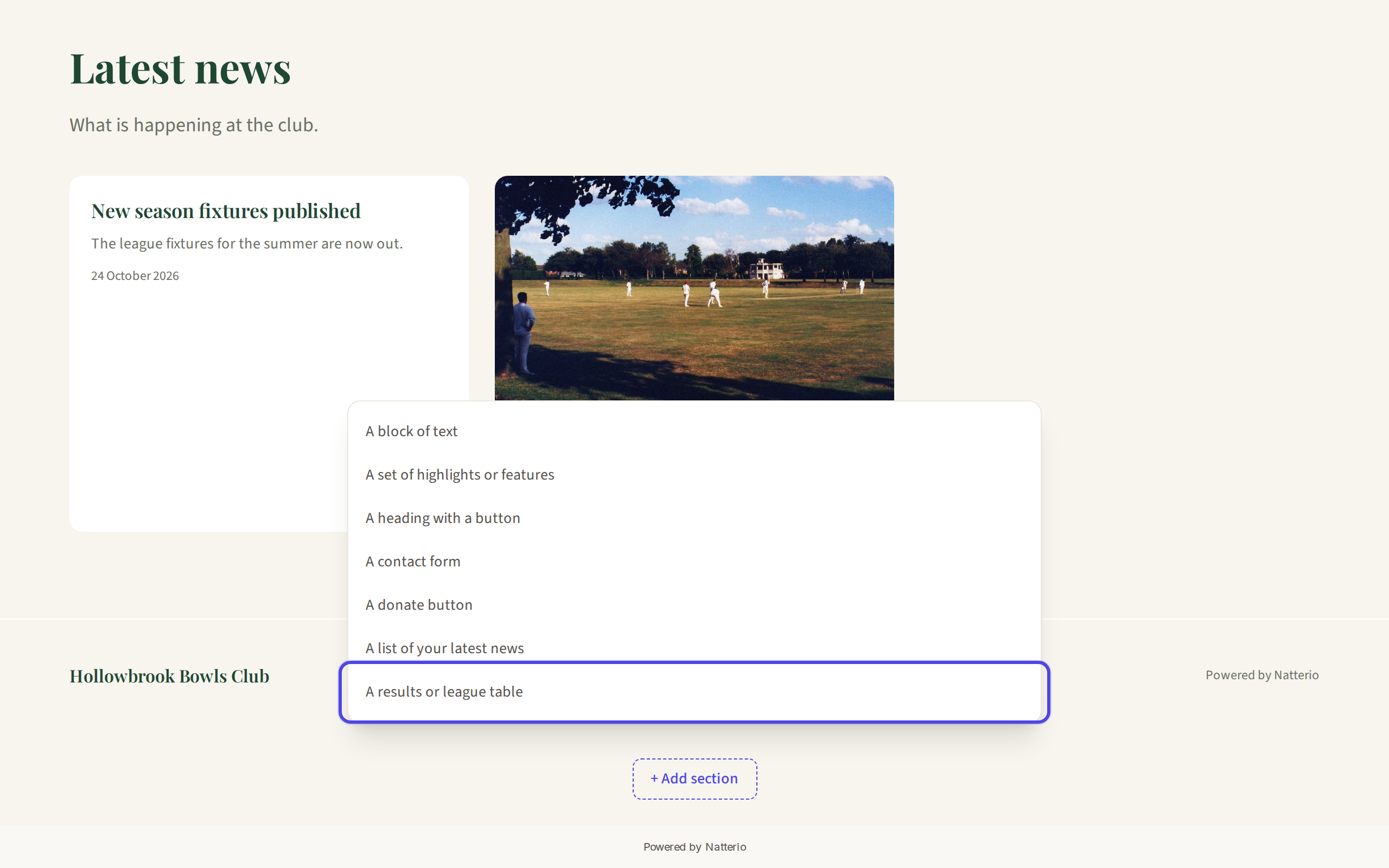
The Add section menu To delete a block, click Remove, then Remove section to confirm. Changed your mind straight away? Click Undo or press Ctrl+Z.
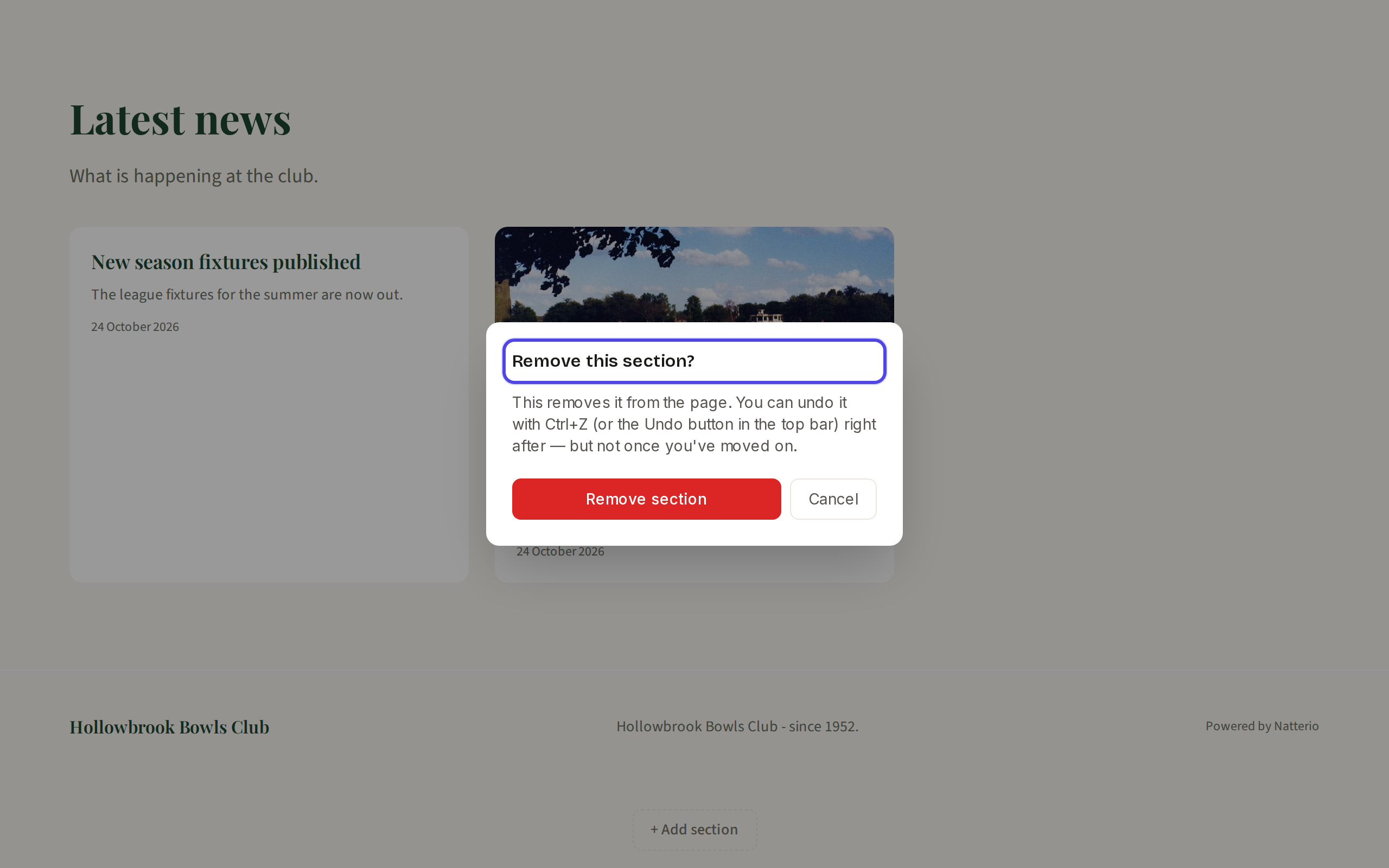
The Remove this section confirmation Click Publish when you are ready.
← All guides
Blocks & content·All plans·Updated
Move, add or remove a block
Each page is a stack of blocks, and you can put them in any order you like.
Common questions
Where is the photo gallery or team block?+
You can add a gallery by choosing Add page, then Template, then Gallery. For a team or events block, email us and we will be happy to help.
I removed something yesterday. Can I get it back?+
Undo only works during the session you are in. Email us and we will help.
Related guides
Edit the words in a block
The text in every block can be changed straight on the page, or in the side panel when you want more options.
Add a page
Pages such as News, Events, Gallery or Results take about a minute to add.
Add a results or league table
Upload the spreadsheet you already keep, or type your results straight in.
Still stuck?
Email hello@natterio.com and we will be glad to help.