In the editor, click + Add page at the end of the page tabs.

The page tabs with + Add page highlighted Type a Page title. The web address shown underneath updates as you type.
Choose Blank, Template or AI-written page. Templates are ready-made layouts: About, Join us, Contact form, Events, News / Articles, Gallery and Results / Leaderboard.
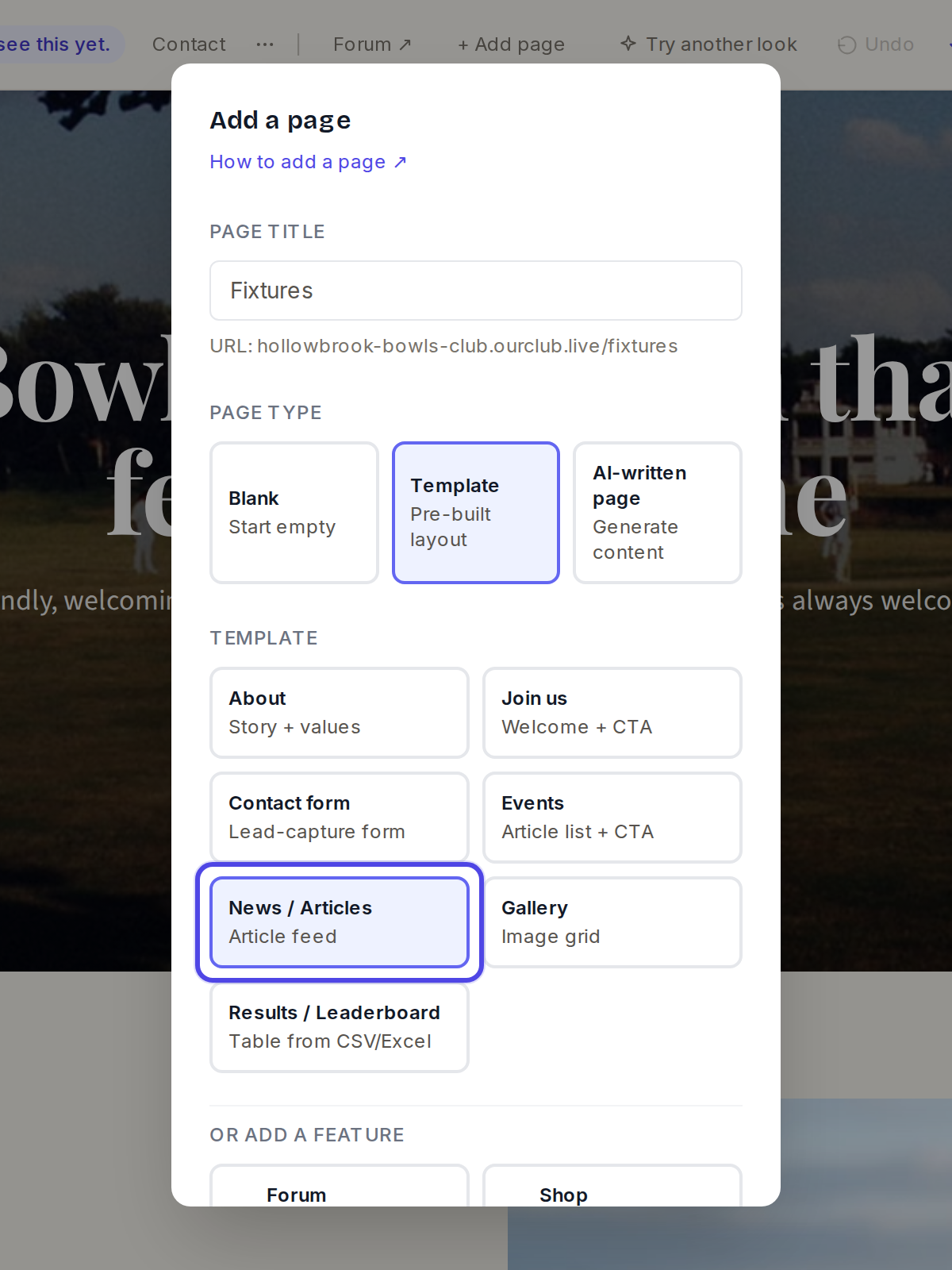
The Add a page window with the News / Articles template selected Click Add page. The new page opens as a tab, and it appears in your site menu automatically.

The new page open as a tab Press Publish when you are happy with it.
← All guides
Pages·All plans·Updated
Add a page
Pages such as News, Events, Gallery or Results take about a minute to add.
Common questions
The free plan says up to 3 pages. Can I have more?+
Yes. Starter and the plans above it do not have a page limit.
I added a News page but it is empty.+
News pages show the news posts you write. See the guide on writing a news post to add your first one.
The Events template shows news, not dates.+
It lists your news posts, so you can write a post for each event. If you would like a dated events list, email us and we will help.
Related guides
Write a news post
News is written as posts from your dashboard. Any News & articles block on your site then shows them automatically.
Move, add or remove a block
Each page is a stack of blocks, and you can put them in any order you like.
Add a results or league table
Upload the spreadsheet you already keep, or type your results straight in.
Still stuck?
Email hello@natterio.com and we will be glad to help.