Click My account, then Manage → beside your site.
Scroll down to Articles and click + New article.
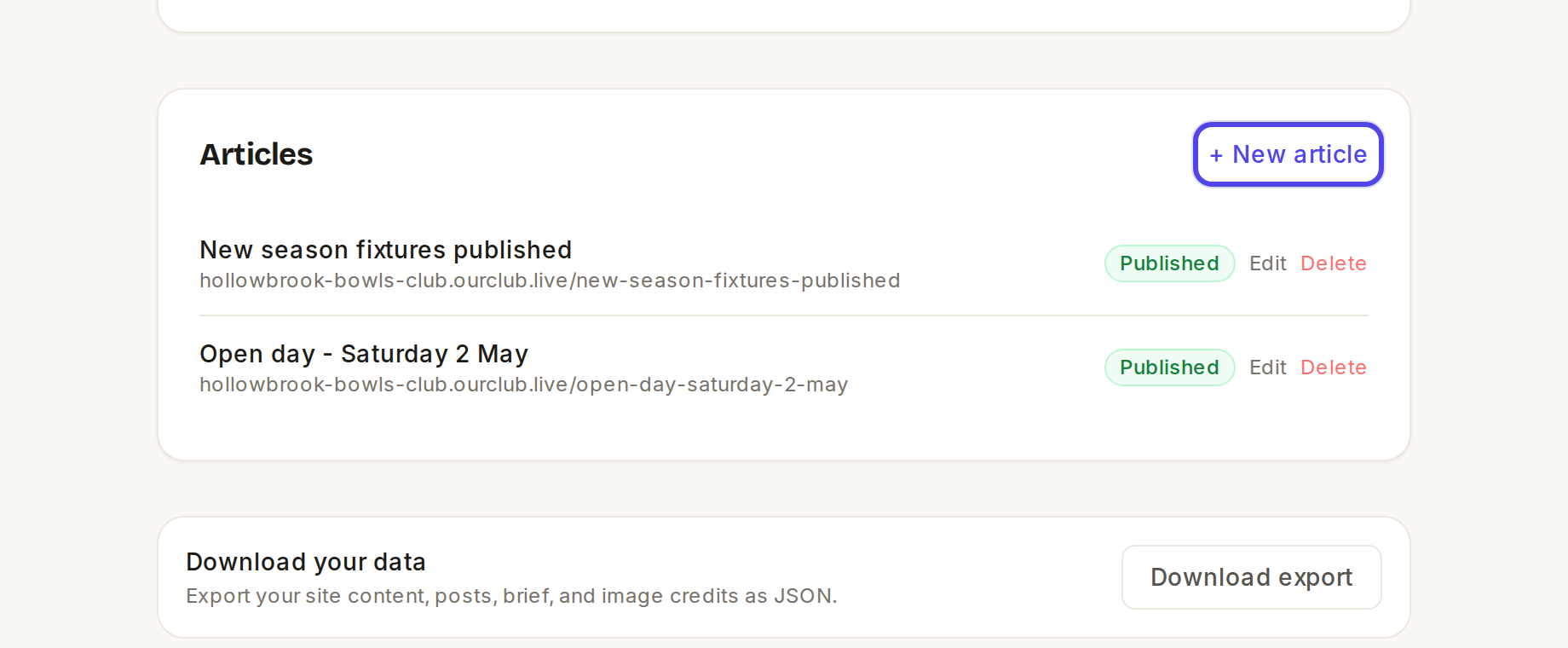
The Articles section with + New article highlighted Type the Article title, then write your article. To make a sub-heading start the line with
##, put**either side of words to make them bold, and start a line with-for a bullet point.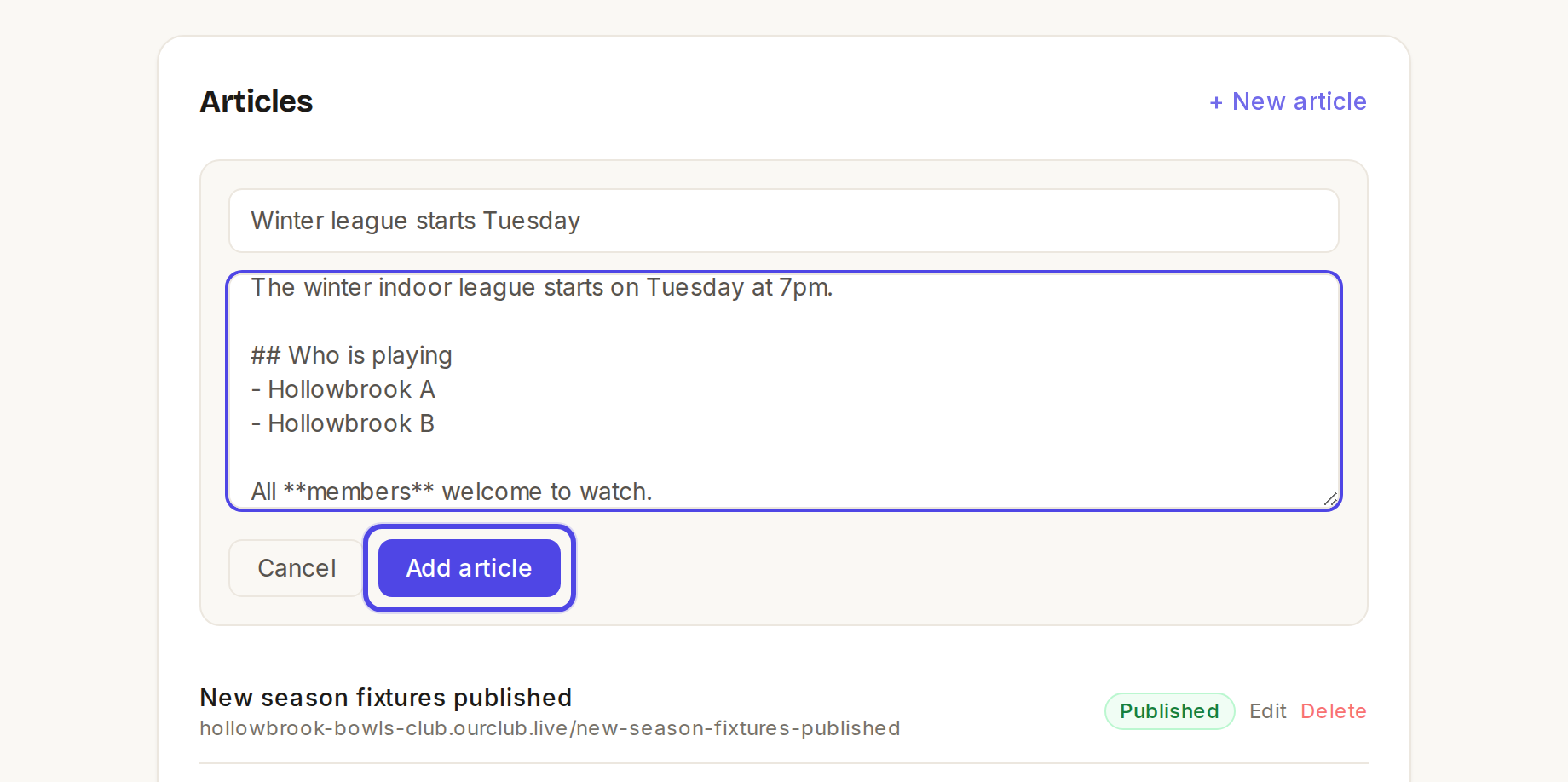
A new article filled in Click Add article. It is live straight away and appears on any News & articles block.
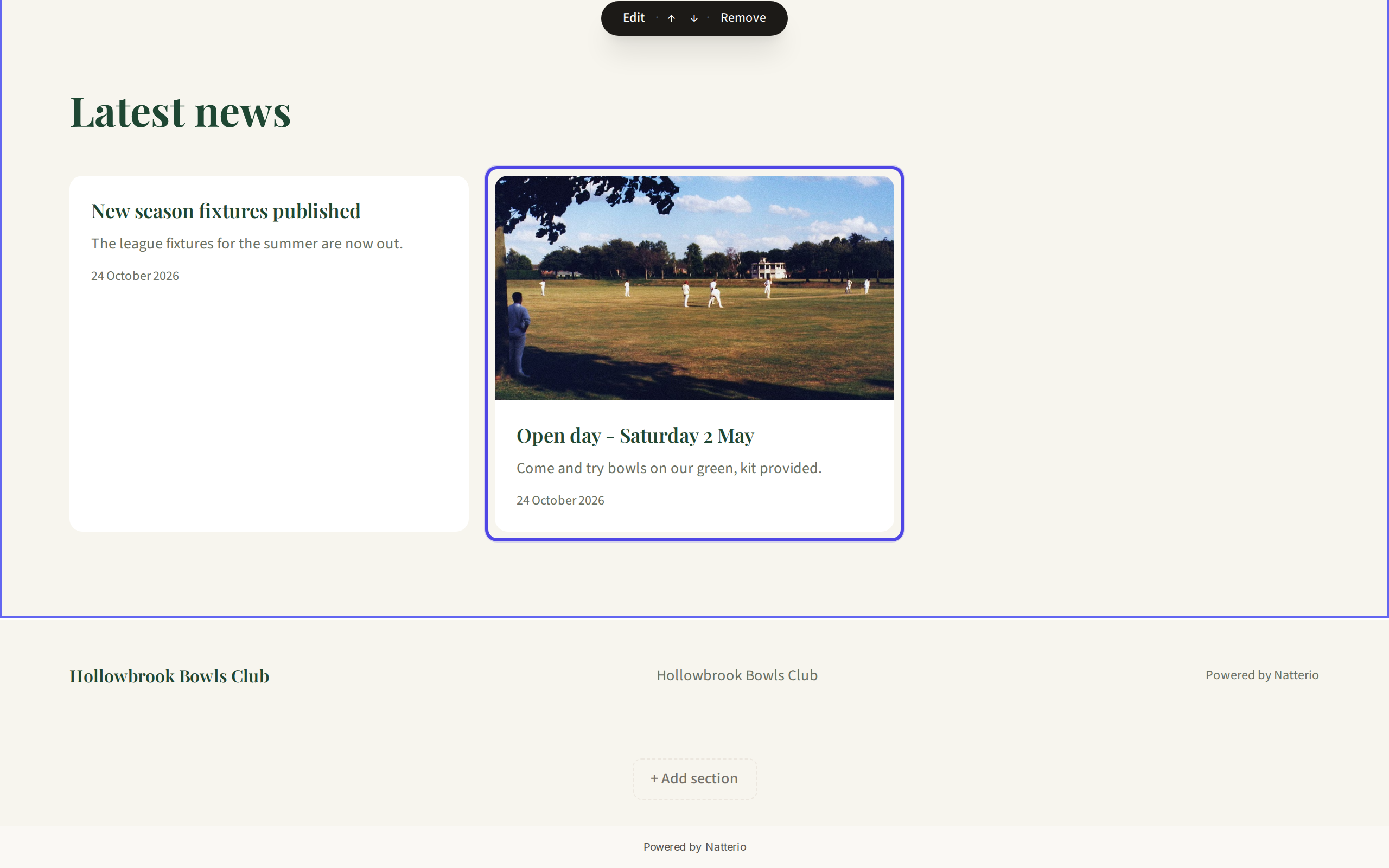
A news post card in the editor To add a photo, click Edit on the article, add a Cover photo, then click Save.
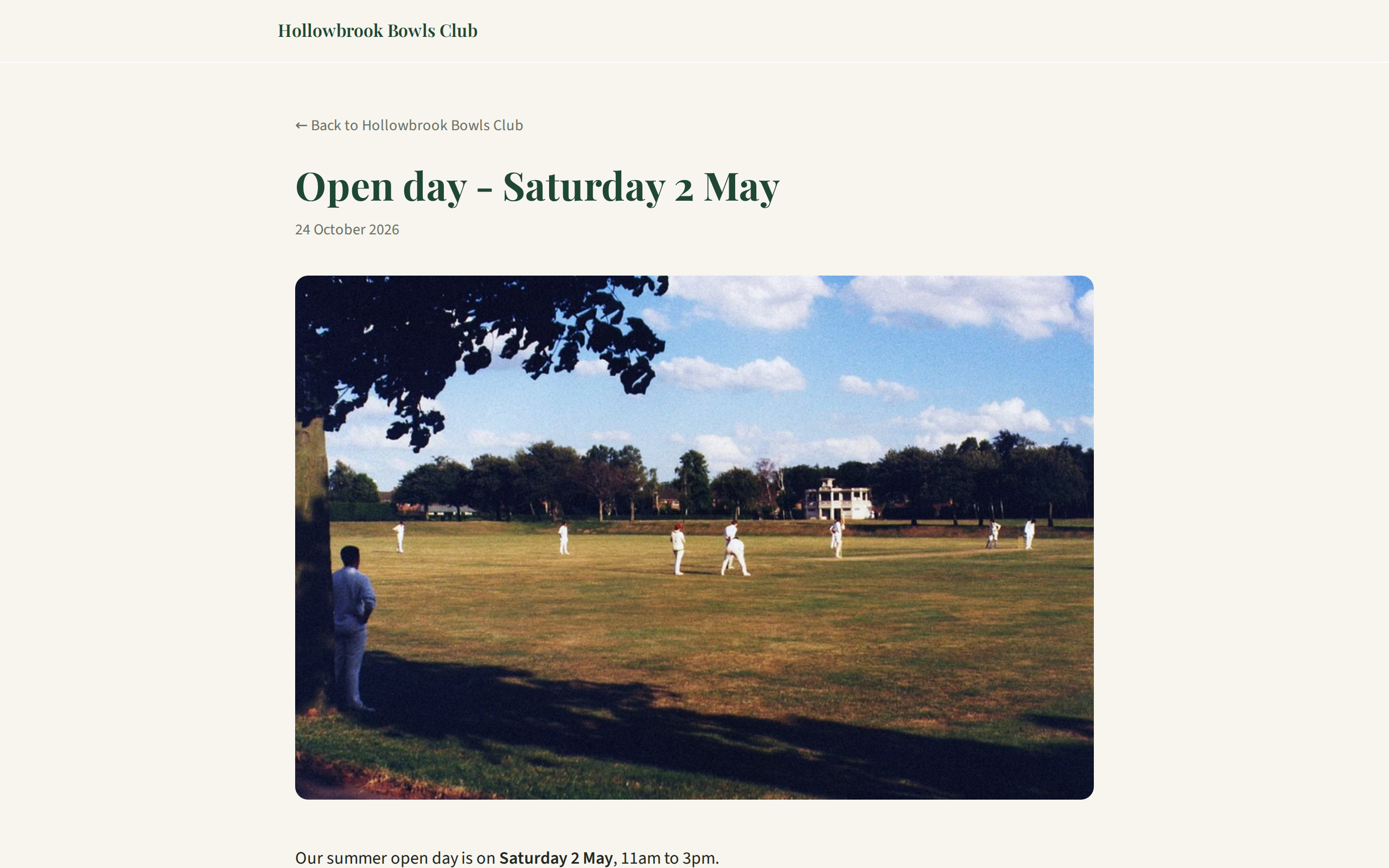
The published post page
← All guides
News & articles·All plans·Updated
Write a news post
News is written as posts from your dashboard. Any News & articles block on your site then shows them automatically.
Common questions
I typed my news into the News block heading and nobody can see it.+
That heading is just a title for the block. The block shows your posts, so copy your text into a new article and it will appear.
Do I need a News block on every page?+
One is enough. Every News block shows the same posts.
Can I write a post now and show it later?+
Yes. Click the Published badge beside the article to switch it to Unpublished, and switch it back when you are ready.
Related guides
Add a page
Pages such as News, Events, Gallery or Results take about a minute to add.
Move, add or remove a block
Each page is a stack of blocks, and you can put them in any order you like.
Publish your changes
Your edits are kept as a private draft until you publish them, so you can take your time and get things just right.
Still stuck?
Email hello@natterio.com and we will be glad to help.