Sign in at natterio.com and click My account.
On your site, click Manage →.
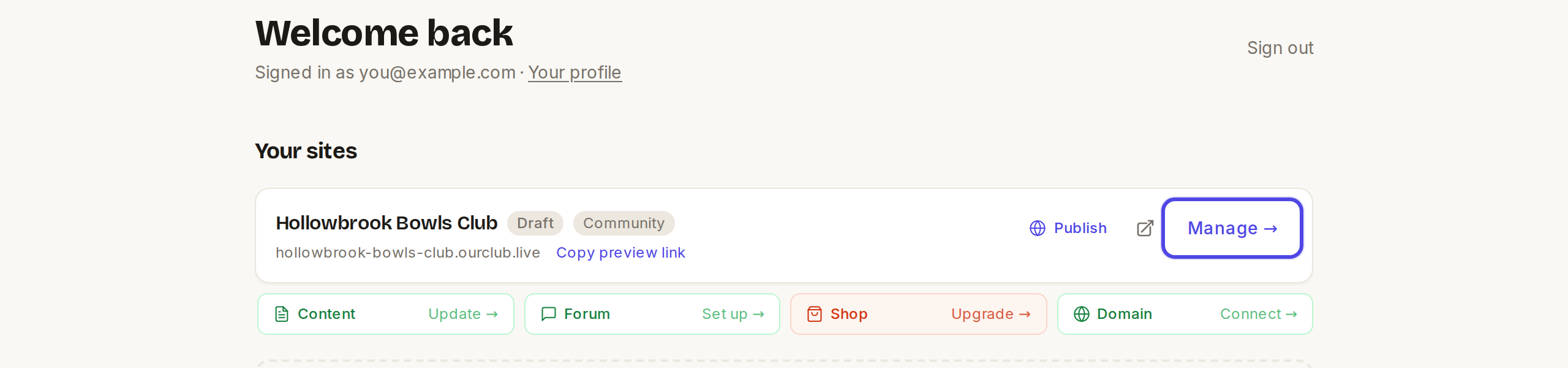
Your site card on the dashboard, with Manage highlighted Click the big Edit my site → button.
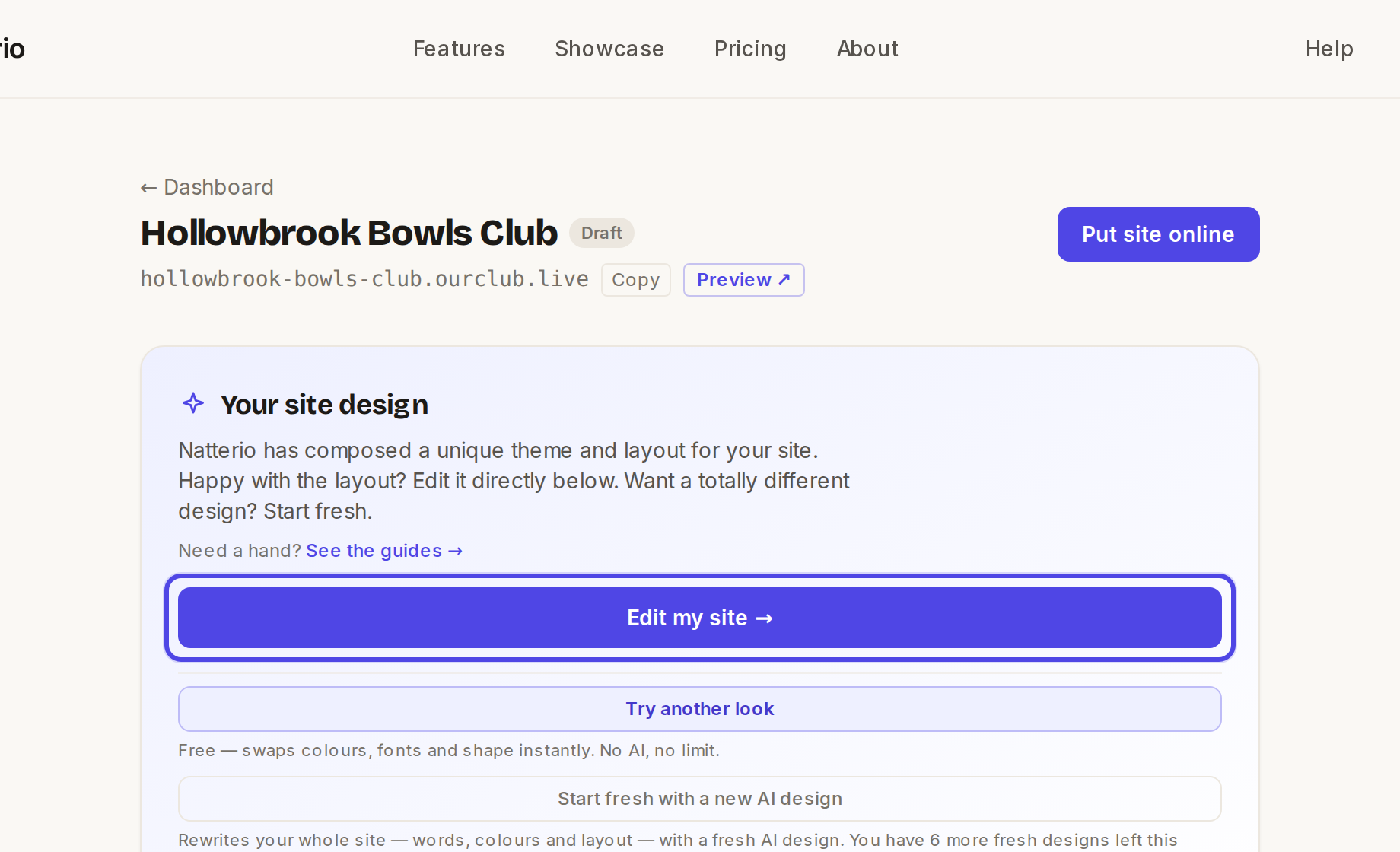
The site page, with Edit my site highlighted The message "You're editing — visitors can't see this yet." means nothing changes on your public site until you press Publish. The round tabs beside it are your pages: click one to switch to it. (Your site's own menu is hidden while you edit.)

The editor top bar, showing the editing message and the page tabs Hover over any part of the page to see its small toolbar: Edit, ↑, ↓ and Remove.
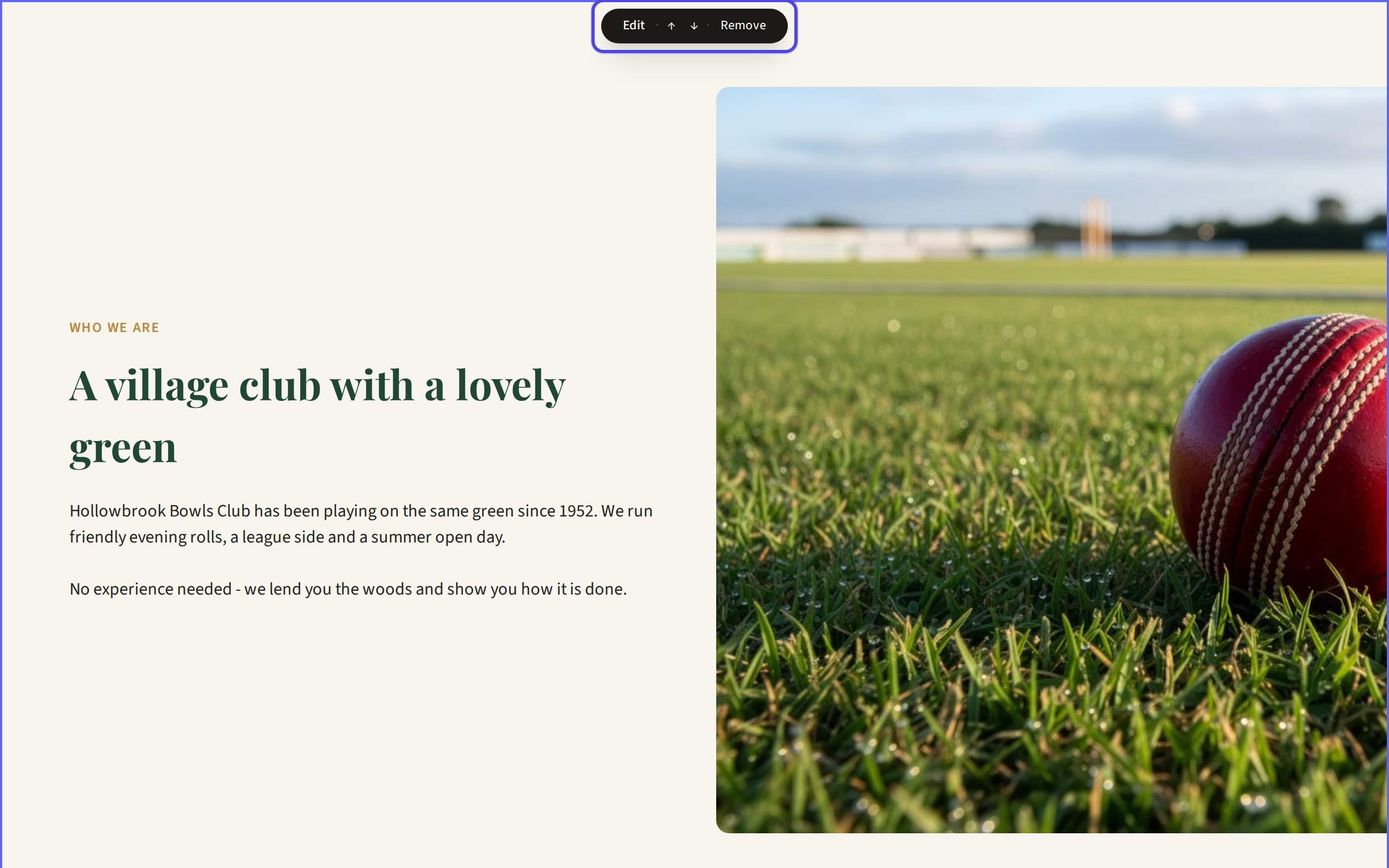
A block with its toolbar showing All changes saved means your draft is safe. It does not mean it is live yet. Press Publish when you are ready.
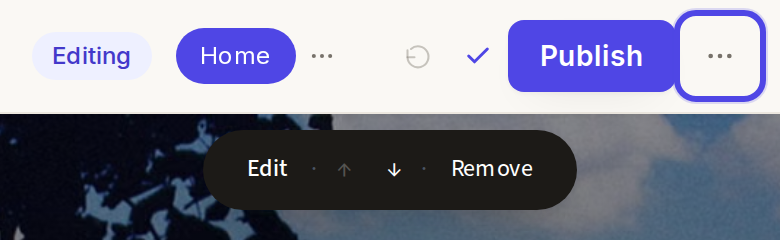
On a phone, the top bar with the ⋯ menu
← All guides
Getting started·All plans·Updated
Open the editor and find your way around
Everything on your site is changed in one place, the editor. Here is how to get there and what the top bar means.
Common questions
I'm on my live site and can't see an edit button. Where is it?+
Editing is always done from natterio.com. Click My account, then Manage, then Edit my site, and you will be in the editor.
Does saving make my changes live?+
No. Your changes are saved automatically as you go, and visitors only see them once you press Publish.
Can I edit on my phone?+
Yes. On a small screen the ⋯ menu in the top bar holds Try another look and View live site.
Related guides
Publish your changes
Your edits are kept as a private draft until you publish them, so you can take your time and get things just right.
Add a page
Pages such as News, Events, Gallery or Results take about a minute to add.
Edit the words in a block
The text in every block can be changed straight on the page, or in the side panel when you want more options.
Still stuck?
Email hello@natterio.com and we will be glad to help.